
Microsoft Word Tutorials
Below is a list of the free Microsoft Word tutorials that we’ve done. In some cases, there are accompanying screencasts to the tutorial or related files. These are noted in the tutorials.
If you don’t have Microsoft Word, there are several options:
- Get a Microsoft 365 (Buy subscription or 1 month trial)
- Buy Microsoft Office 2021 (One-time purchase)
- Buy Word Home & Student (One-time purchase)
- Use the free version in your browser.
The free version does require you to have a Microsoft account. As you might expect the free version is not full-featured.
I also did an article outlining which Microsoft Office version to get with a comparison table.
How to Restore the Missing Personal Tab in Word for Custom Templates
Is your Personal tab missing in Microsoft Word? Learn effective methods to bring it back and access your custom templates. This tutorial guides you through essential Word Options settings and troubleshooting tips, empowering you to solve common issues.

How to Make a Letterhead in Word: Easy as ABC
Need to create a professional letterhead in Microsoft Word? Many users struggle with placing logos, contact details, and formatting correctly. In this guide, I'll show you how to design custom letterheads using headers, footers, and template features. You'll learn how to add company graphics, position contact information, and save reusable templates. Each step includes clear instructions and practical tips for achieving a polished, professional result that maintains consistency across all your business documents

Why is Spell Check Not Working in Word? Find Easy Fixes
Is your Word spell check not working? It's a common source of frustration for many users. In this guide, I'll show you how to check language settings, proofing exceptions, and template files. You'll learn how to fix problems in single documents or across your entire Word installation. While you troubleshoot, you can use suggested online alternatives as temporary solutions. Each solution includes clear steps and practical troubleshooting tips to get your spell check working as expected.

Use Wildcard Search to Find Word Replacement Character Issues
Discover how to use wildcard search in Microsoft Word's Advanced Find feature to locate and fix troublesome replacement characters caused by translation issues. Learn about UNICODES, create a search group to exclude valid characters, and understand the wildcard syntax. Utilize Word's Advanced Find to highlight the problematic characters in yellow and tweak the search expression to achieve optimal results.

How to Make a Cornell Notes Template with Word
The Cornell Note-taking method enhances learning by structuring notes in a specific layout. This tutorial guides users in creating a Cornell Notes Template using Microsoft Word. The method divides a page into three sections: Cue Column for keywords and questions, a main note-taking area, and a summary section for key points. The template can be personalized, and there's also a printable PDF version available.

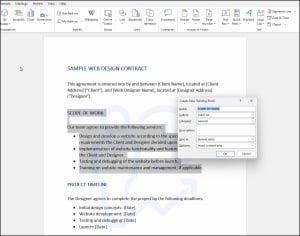
Microsoft Word Quick Parts Lets You Work Smarter, Not Harder
See how to add Quick Parts and building blocks to your workflow to speed up document creation. This is a great solution if you reuse lots of assets such as text paragraphs, signatures, watermarks and so on. Great for contracts, RFP, travel itineraries, customer correspondence to name a few.
Comprehensive Guide to Add a Word Watermark (Default or Custom)
Learn how to add a watermark in Microsoft Word, whether it's a simple text or a custom image, and why watermarks can be useful for conveying a document's status or promoting branding. Find out how to remove a watermark and even save it to the watermark gallery for future use.

How to Transcribe Audio Files with Word
Have you ever listened to a podcast, webinar, or class lecture and wished you had a written transcript? Microsoft released a new feature for Word for the web that simplifies transcription for English speakers. It's a great start, but like all audio transcription tools, you still need to do editing.

How to Catch Costly Mistakes with Word’s Exclude Dictionary
Sometimes it's too easy to rely on built-in proofing tools to catch mistakes. Spellcheckers are great for misspelling, but what if your typo resulted in a word that is spelled correctly? There is a feature in Microsoft Word that can help prevent embarrassing mistakes.

How to Wrap Text Around a Picture in Word (Step by Step)
Struggling with text alignment around images in your Word documents? In this tutorial, you'll master how to wrap text around an image in Word, ensuring your documents look professional. We'll guide you through inserting an image, adjusting its size, and choosing the perfect layout for your text. The skills you'll gain will allow you to create visually appealing and easy-to-read documents.

Mirror Print Text or Images in Word
Ever found yourself needing to print text in reverse for a t-shirt transfer or a mirror-readable message? This tutorial addresses this exact challenge. While Microsoft Word doesn't have a built-in "reverse text" feature, it offers a clever workaround using WordArt. Includes steps for creating mirror images by flipping horizontally.

How to Get Word Readability Statistics for Microsoft 365
Looking to enhance the clarity of your writing in Microsoft Word? This article provides actionable steps to locate and use the Readability Statistics. With these tools at your fingertips, you'll be empowered to craft content that resonates with your audience, every single time. Includes some free alternatives too.

Make Your Own Word Keyboard Shortcuts & Master Word Like a Pro
Increase your productivity in Microsoft Word with personalized keyboard shortcuts. Customize commands you use frequently and for easy access. Explore the extensive list of Word keyboard shortcuts for ideas. See how to assign shortcuts to commands such as Reading Mode.

How to Convert Word to HTML: Issues to Avoid
Converting Word documents to HTML can be a complex task, especially if you're using Microsoft Word. This article discusses how Microsoft Word often adds extra code, making the files larger and potentially causing rendering issues. It also offers a review of alternative tools that provide cleaner, more efficient conversions.

Video: Wrap Text Around Word Images
This is a 2 minute video that shows how to use the Picture toolbar to wrap text around images.
