
PC users often feel limited by rules and structures. Sometimes this means slogging through many folders to find a needed file. Other times, it means typing text passages repeatedly to suit a need. Many people consider these annoyances routine. Others have found relief by using a program called ActiveWords. This Windows program can be a great program launcher with lots between. It lets you define productivity with your terms.
What is ActiveWords
Basically, it’s a text-activated productivity tool. The good news is that this text can be minimal and non-sensical. For example, I can type ff followed by space and space and launch my Firefox browser. Moreover, I can be anywhere in Microsoft Windows. I can launch the program from within the WordPress editor as I write this.
In the above example, the ff is the ActiveWord that I defined. The 2 spaces are my trigger. I can define any of the 7 actions by combining the word and trigger.
Action Types and Examples
- Substitute text – expand ActiveWord into prefined text such as FAQs, terms, etc
- Substitute formatted content – Same as above, but I can add formatting codes and images
- Start a program – launch a program like Firefox
- Open a file – open my resume in Word
- Open a folder – open my Images folder
- Open a webpage – open my reading list in ClickUp
- scripts – advanced functionality to control applications
As you can see from the list, it has overlap with programs like TextExpander. The tool isn’t limited to typed text. For example, I could read an article, highlight some text, and press F8 to trigger a search engine or database lookup. This feature is handy if you like looking things up on Wikipedia or other resource pages. In this example, my highlighted text is called ActionText.
ActiveWords Benefits
The main benefit of ActiveWords is it allows you to define and execute computer actions based on your terms. I’m also using terms in a generic sense, as the term could be a nonsense word or include symbols. You map an action to any word you wish. Then, regardless of which computer program you’re running, ActiveWords will execute the action when triggered. In other words, the computer is now working on your terms.
ActiveWords relies on a semantic user interface where a location is irrelevant. This means I no longer have to worry about where I am before executing a command. Instead, I type a word and press my trigger key. This type of interface is ideally suited for anyone who tends to jump out of one program to do another task.
Creating an ActiveWord
There are several ways to create an ActiveWord. The first is by using a drag-and-drop method. This is easiest for opening specific web pages, files, or folders. By dropping an asset on the ActiveWords icon, it will associate it with the correct action. For example, dragging a URL from your browser on top of the icon will preselect Open URL as the action type. A similar event happens if you drag a Word document on top of the icon. ActiveWords understands you want to Open Document.
In other cases, you want to define your words, triggers, and actions. First, I’ll create a text expansion for some common text on this website in the example below.
- Type add followed by space and space. The Add New ActiveWord dialog opens.
- Keep the Action Type set to Substitute Text.
- In the textbox, type or copy your expanded text. This is the text you wanted to be substituted.
- In the Action Description section, provide a brief description.
- Type your trigger word in the Word(s) to trigger this Action area. I prefer short words.
- Choose your Trigger from the drop-down list.
- Click Save.
Below you’ll see my completed dialog. In this example, I’m substituting the required code for a Material Design icon for the ActiveWord “infoi” or “icons.” As you can see, it’s possible to have multiple trigger words.
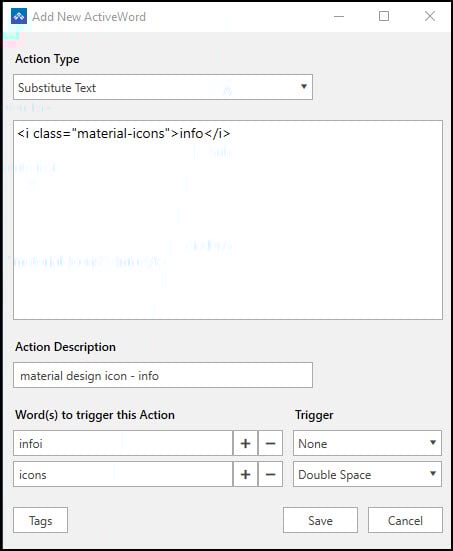
Multiple Trigger Words
In the picture above, you might be wondering why I added the second trigger word “icons.” After all, it seems generic, but that’s by design. There are times when I’m writing, and I’m not sure which icon I want to use. And I seldom remember the code structure and name. So, instead of memorizing them, I group them with the same trigger word.
I type the generic word and choose from a list of related ActiveWords. For example, in the screen snap below, you can see five related icons that appear when I typed “icons” into the WordPress editor. Granted, I could type the unique trigger word, but sometimes broader is better.
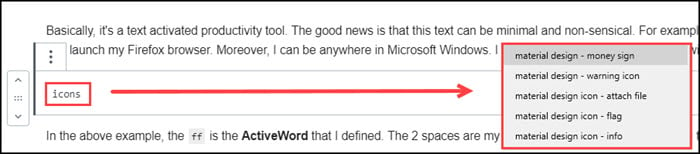
Once I make my selection from the picklist, the new text will overwrite “icons”.
I use a similar approach when I’m doing browser testing or troubleshooting some web issue. In addition to each browser having a unique trigger word, I’ve assigned the “browsers” ActiveWord to each.

ActiveWords Monitoring
Although the program monitors your activity, it’s not intrusive. The program loads at startup but doesn’t appear to be a resource drain like other programs. Instead, it stays in the background until you trigger it or it suggests an action. You can even auto-hide the monitor bar. I did see some reference to possible issues with wireless keyboards, but my Microsoft Wireless Comfort Keyboard 5050 had no issues.
The program has two components that can show on your desktop. The first is the floating ActiveWords icon. I like to have mine off to the side, but you can drag it anywhere you prefer. The second item is the Monitor Text bar which I unchecked. It, too, can be dragged anywhere. Its purpose is to show the letters you type. Finally, you can right-click the floating icon to bring up the Options module.
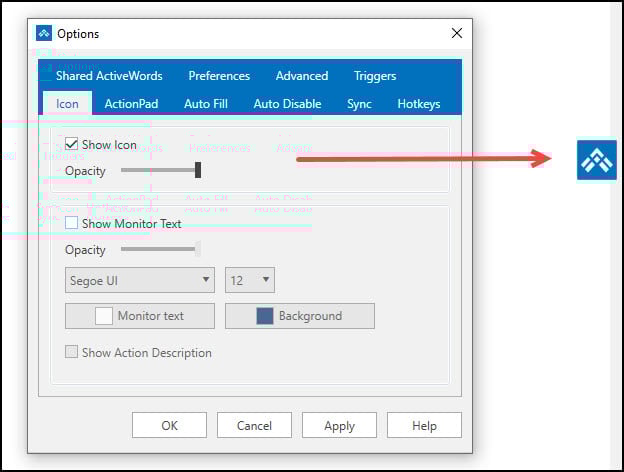
You can also see a listing of all your ActiveWords by left-clicking the icon. This will include your words as well as some predefined ones. The list allows you to also search for specific words or filters. This can be handy if you have a lot of words and don’t use tags. Tags are another way you can group words.

Adding Efficiency to Routine Tasks
When I started testing ActiveWords, I made a list of routine items where I thought the program could help. These included the typical items of opening folders I use daily or automating email addressing. Although those are great benefits, I think I’ve gotten as much value from automating the infrequent items.
Before using ActiveWords, I made an effort to keep a neat desktop. I don’t like too many icons on my desktop. The area that always challenged me was corralling the countless items that would appear when I clicked Start, and an alphabetical program list appeared. My intent was to group items by function or publisher so I could easily find items. Well, it takes too much effort to comply with that system, so I let installers keep their default settings. However, that behavior led to my pinning more items. Over time, it took longer to find the programs and files I used on a semi-frequent basis.
With ActiveWords, I seldom rely on desktop icons or my Start menu. In many cases, words have replaced my mouse actions. As a result, I’m more inclined to remember an ActiveWord that I create and assign to a program than remembering where I placed the application.
Controlling Consistency & Syncing
One of the newer program features is syncing. This allows me to save my words to a cloud account such as Box Sync, Dropbox, Google Drive, or OneDrive. This means I can access my words from another PC so long as it has the program installed and access to the shared folder. Thus, I don’t have to duplicate my desktop words in my notebook.
With ActiveWords, you can have a shared database. This would allow employees to use defined words but not edit them. This can be great for companies that need to maintain consistency. Some obvious examples include having customer service answers to common issues. Another example has a consistent email signature that matches some corporate style guides.
Final Thoughts
I think almost anyone would benefit greatly from this program, especially given the 60-day trial period. ActiveWords cuts the time to finish tasks while maintaining accuracy. Following that theme, the company has added many free add-in applications. Some of these work with programs such as Microsoft Outlook, Evernote, DropBox, Microsoft Word, and the web. These popular add-ins provide functions that might otherwise call for a script. One example is a text substitution agent that catches many of my misspellings.
The bottom line, ActiveWords is a productivity enhancer.
Additional Product Information
- URL: https://activewords.com/
- Cost: $40 yearly
- Requirements: Windows 10 or above
- Rating: ★★★★★