
The concept of email signatures isn’t unique to Outlook. This feature exists in many email applications. However, Microsoft Outlook does make the process of creating and applying them to specific scenarios easier. In this tutorial, I show how to create a signature with an embedded image.
You might think of an email signature as a container for reusable text or images. The signature panel is versatile and allows you to add text, images, hyperlinks, and other assets. Moreover, you can build different signatures for different purposes.
In this tutorial, I’ll show how to create one using Microsoft Office 365. The process is very similar for Outlook 2016 and Outlook 2019. However, the process is different for Outlook.com and is covered in a separate article on how to add an HTML signature.
Corporate Considerations
Before starting, I should offer a cautionary note. Some companies want everyone to use a standard signature. This is usually done for branding and compliance purposes.
For example, I have one friend whose emails must include the following signature:
Warning: All e-mail sent to this address will be received by the corporate e-mail system and is subject to archival and review by someone other than the recipient.

TextExpander: Worth It? Find Out.
Is TextExpander the right tool to boost your productivity? Get an independent assessment, weigh the pros and cons, and make an informed decision. Find out why I’m a fan.
Read the ReviewWhat Should Your Email Signature Block Include
Although it’s easy to change your Microsoft Outlook signature, you should think about what’s needed. This varies based on whether this is a personal signature or a business signature.
Even within a business setting, you might want to have different versions. For example, you might have a simple version for general correspondence, but then have another that adds a link to a scheduling service such as https://calendly.com/ or your company’s current job openings.
Some email signature block ideas include:
- Providing standard corporate contact info
- Company disclaimer message
- Your web page
- Alternate contact information
- Your direct phone number
- Awards or memberships
- Company logo
- Favorite quote or tagline
- Link to booking/demo calendar
- Link to your fundraiser or charity page
- Hours of operation
- Special promotions
- Social media accounts
Email Signature vs Business Cards
Microsoft Outlook is versatile in another way. It has two features on the Insert menu that have similarities. The first is the concept of a “business card”. This is an entry you can insert in an email instead of a signature. It pulls the information from a contact record you’ve entered and presents it as an image.
The layout looks like a business card. The advantage of this format is that it also includes a virtual card file (VCF). This vCard file represents an easy means for the recipient to add you to their contact database. Outlook handles the styling, but you can resize the card.

The only prerequisite is you need to have created a record in Outlook’s Contact section with the desired info.
In contrast, if you build a signature from scratch you have more formatting and styling options. You can also edit, style, and delete parts after you’ve inserted them into an email.
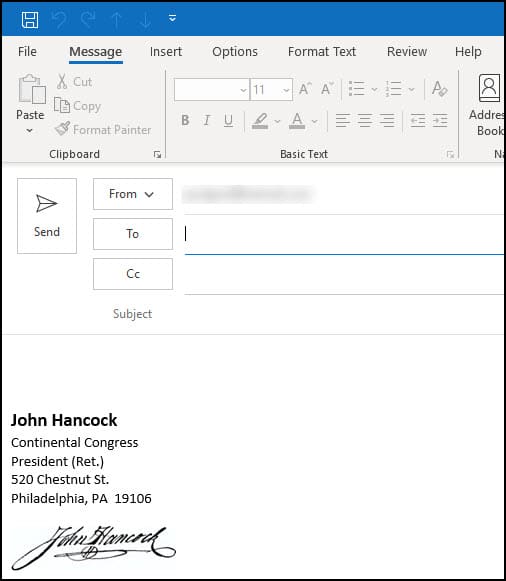
How to Create an Email Signature Image
For this tutorial, the signature we’ll create will display a facsimile signature for John Hancock with related information. Although I grabbed a copy of his signature for this article, you can apply the same process to corporate logos.
If you plan on using a graphic signature, I’d suggest uploading the final size as opposed to resizing it within your email. To give context, the signature image I’m using was resized down to 165 pixels by 45 pixels.

- Open a new email in Outlook 365.
- From the Message menu, click the Signature button. A small menu appears with any defined signatures.
- Click Signatures… since we will be creating a new one.

The Signatures and Stationery dialog will open.
- Click the New button under the Select signature to edit section.
- In the New Signature box, type a descriptive name.
- Click OK. The new name will now show above.
- In the Edit signature section below, type the details you want.

- Apply any formatting to the info you entered. For example, you might want to make the name a larger font size and apply bold styling.
- After the last line, press your Enter key twice to add spacing for the image.
- Click the Image icon. It’s just to the right of Business Card. The Insert Picture dialog appears.
- Select your image file and click Insert. You can use most popular image formats with the exception of .SVGs.
- Your image will appear at the bottom with an outline.

- Click OK. The dialog will close and you’ll be back to your blank email message.
How to Add a Link to the Image
One item that is easy to miss is that you can assign a URL to your images to make them clickable. This is useful for social media accounts like Twitter, Facebook, LinkedIn, etc.
- Open your signature in the Signature and Stationery dialog.
- In the Edit signature section, click your image. An outline should show around the image.
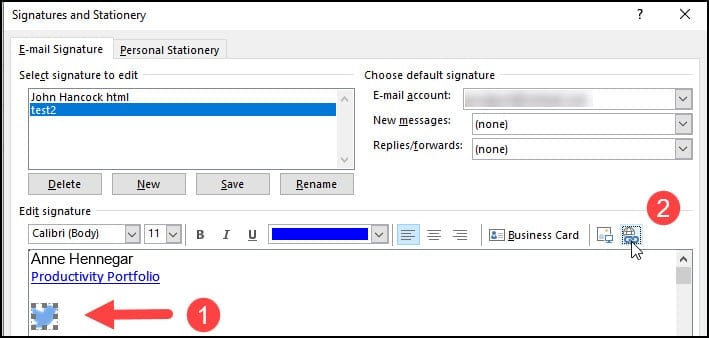
- On the toolbar, click the Link button.
- In the Edit Hyperlink dialog, enter the URL in the Address: field at the bottom.
- Press OK.
- Press OK again.
Additional Tips and Formatting
Now that we have our signature created, you should test it before you use it on all new messages (unless you’re lucky enough to have a Litmus account). This is especially true if you include an image or any type of special characters. Sometimes copying and pasting text can create quirks. Or, images can look the wrong size.
After proofing your contact info,
- Get friends to view your signature in their email client.
- See if the signature displays on phones and tablets
- Verify the alignment is correct. In my example, everything was left-aligned.
- Make sure the hyperlinks work.
How to Insert the Signature in an Outlook Email
There are several ways to add signatures to an email. When you create a signature, you have the option of assigning it as a default. This is based on an email account and message type. In the screen snap below, you’ll see that I assigned the John Hancock – Image signature to all New messages. However, I don’t insert it for Replies/Forwards.

Some people prefer to manually add the signature. In this case, they’ve selected (none) for New email messages.
To manually apply a signature,
- Open a new email.
- Position your cursor where you’d like the signature to appear.
- Click the Insert menu.
- Click the Signature button.
- Select your signature such as John Hancock – Image.
- Make any formatting changes if necessary.
How to Change Your Outlook Signature
Your signature is actually an Outlook option. So, the universal way to get to it is through the File menu. The advantage to this method is every Outlook section or email has a File menu.
- Click the File menu.
- Select Options from the left navigation panel.
- Select Mail from the Outlook Options dialog.
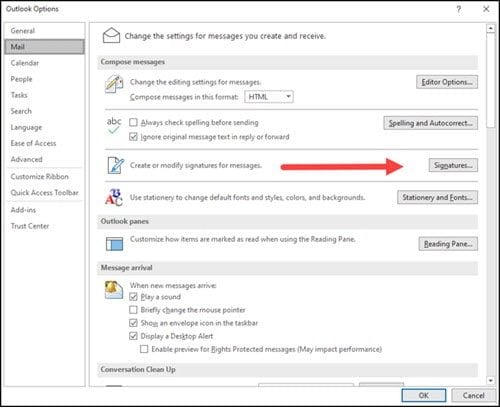
- Click the Signatures.. Button. This will open the Signatures and Stationery dialog.
- Highlight the signature you wish to change.
- Review your Choose default signature options in the top right.
- Make your edits in the Edit Signature section.
- Click OK.
- Click OK again.
Alternatively, you can get to the Signatures and Stationery dialog from a new email message, by clicking Signatures…. from the drop-down menu.
You can also use this process if you need to delete or rename a signature. You just need to use the appropriate button.