
Ever had some of your Microsoft Excel spreadsheets show a #DIV/0 error in various cells? It brings back memories of math class for some. In this tutorial, I’ll explain what causes them and how to remove #div/0 errors in Excel from showing that dreaded text. I’ll show how to solve this problem by adding a simple IFERROR function argument. (Includes Excel practice file.)
What Are Excel Divide by Zero Errors
It’s a logical error that happens when either of these conditions occurs:
1. a number is divided by zero (0)
2. your Excel formula refers to a blank or empty cell
In this situation, the problem occurs because a cell in Column D (Catalog Count) was either empty or a 0. If you were to click one of the #DIV/0! cells, you would see a Microsoft Excel tooltip that reads: “The formula or function used is dividing by zero or empty cells.” You can see examples in the red boxes below.
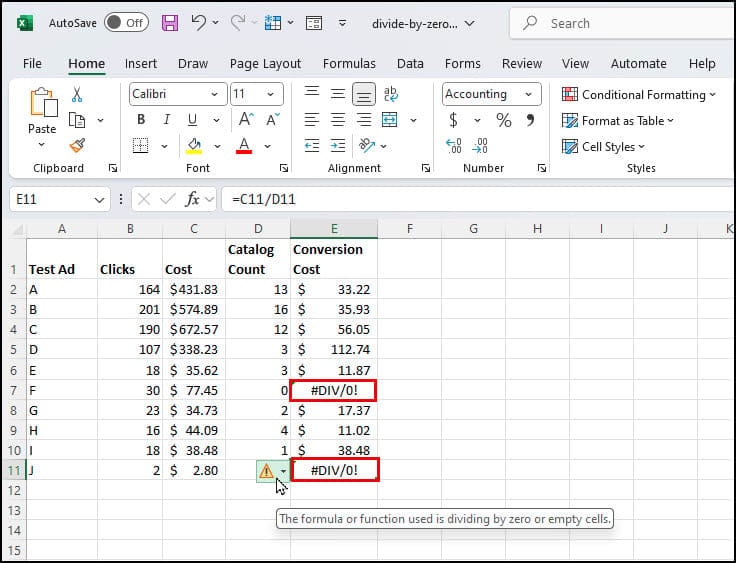
I got the Excel error in cell E7 because I tried to divide my Cost value in C7 by my Catalog Count in D7. It’s a division by zero error message.
These figures were from an ad that cost $77.45 and generated 0 catalog requests. In other words, I was asking Microsoft Excel to divide $77.45 by zero. Oops.
The second reason Excel displays this error for cell E11 was because cell D11 is blank. It’s hard to see because the tooltip overlays the cell value.
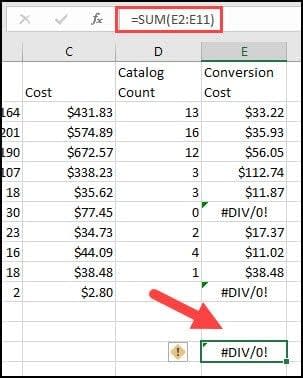
While it may seem that this error would only display when division was involved, it can be inherited from a cell range. In the example below, I tried to SUM column E. I also get the error because there was #DIV/0! in the cell range.
Add IFERROR Logic to Fix Your Excel Formula
You’re probably wondering how to remove the #div/0 error. After all, empty cells and zeros are valid spreadsheet entries. There are several ways to fix this error, but I’m going to use the IFERROR function.
This is a built-in logic function where you direct Excel to do an action IF a formula produces an error such as dividing by zero. You might think of it like this:
=IFERROR(your_formula, error_replacement_value)
In this case, I want Excel to take a different action IF I have a Catalog Count of “0” or a blank entry. Otherwise, Excel can continue as normal. Specifically, I want to replace the error message with 0.
Note this function will use your replacement value if there are other Excel errors such as #N/A, #VALUE!, #REF! , and #NAME?.
How to Show a Zero instead of #DIV/0!
The steps provided below are using the data above. It’s also in the practice file below.
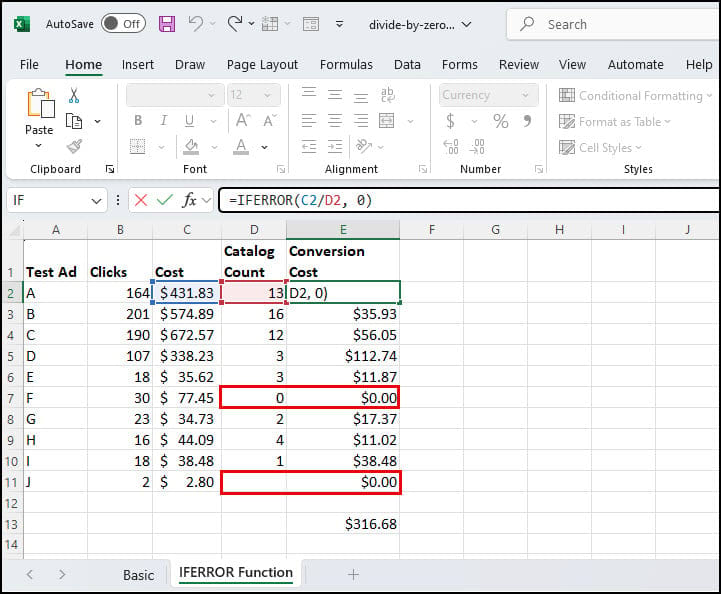
- Click cell E2. It has the formula =C2/D2.
- Change the formula to read =IFERROR(C2/D2, 0)
- Click OK.
- Copy the Excel formula down to each cell in the column.
You can see this in the example below. In each case where I had a “0” or a blank cell in Column D (Catalog Count), Excel left the Conversion Cost value in Column E as $0.00. This function also fixed my sum value in cell E14.
Currency vs. Accounting Formats
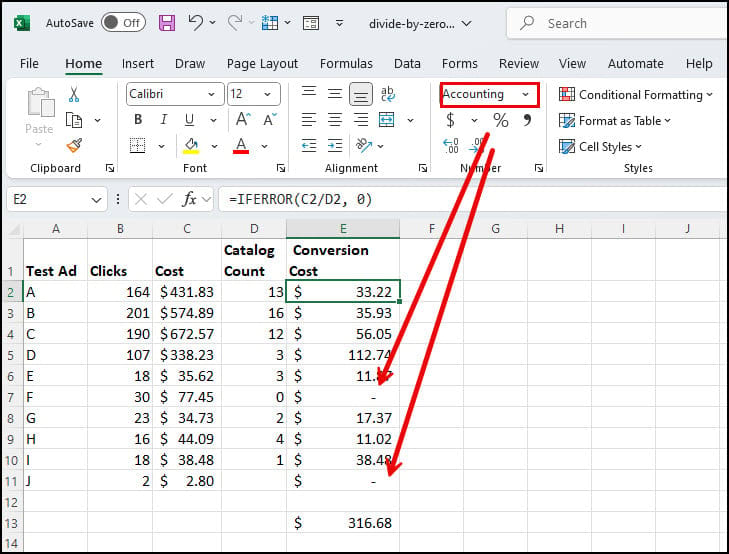
After my initial tutorial, a reader told me he couldn’t reproduce my results. He wasn’t getting the expected zero, but a dash. The difference was in our number formats.
Currency Format Example
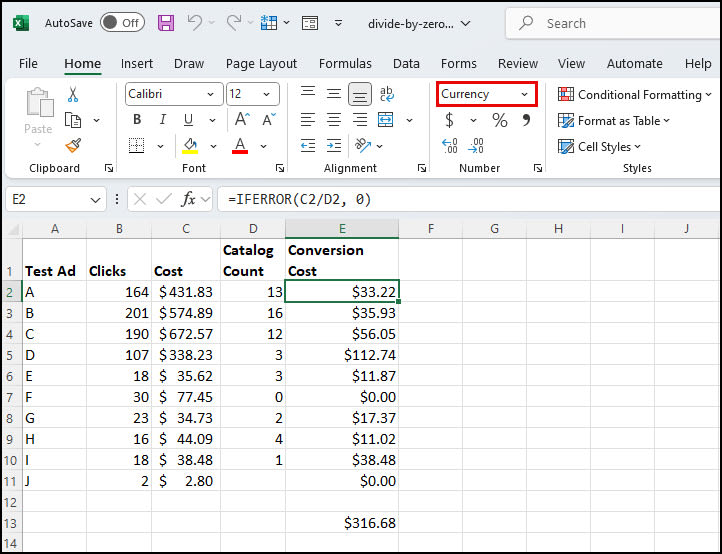
I tend to use the currency format. In the example below, you can see the formula errors are displayed as $0.00. The zero is from the IFERROR formula and the decimal and dollar sign from the number format. The currency symbol does vary based on your country.
Accounting Format Example
Another popular format that financial people use is accounting. It shares some similarities with currency since both show decimals and currency signs. However, the currency symbol is to the far left and the formula errors show as dashes.
More #DIV/0! Formula Substitutions
Just as some people don’t like the divide by zero error messages, others might object to blank cell values or the $0.00 reference. They might prefer something like a text value or even the contents of another cell.
You can substitute text or a cell reference instead of having the cell be $0.00. For example, I could’ve used “NA.” Please note the quote marks, or you could get formula errors.
=IFERROR(C2/D2, "NA")
or left a blank value
=IFERROR(C2/D2, "")
or used another cell value
=IFERROR(C2/D2, C2)
In this last example, Excel would instead insert the Cost value in the Conversion Cost cell. Depending on your situation, this may be more accurate. Using the Cost value would be better than “0” or a blank in my example of catalog conversion costs.
Another solution from readers mentioned that the ERROR.TYPE method works well. Microsoft has assigned an error value of “2” for this #DIV/0 example. You can find more details on ERROR.TYPE on the Microsoft site.
Remember, to make your spreadsheets more useful, you need to prevent and remove the #DIV/0 error in Excel. You can do this by using the IFERROR function in Excel. It will tell your spreadsheet what to do when it encounters a formula error. Chances are, whichever method you choose will be less annoying for your users than seeing the error.
Below you will find a downloadable file you can use to practice your new skills.